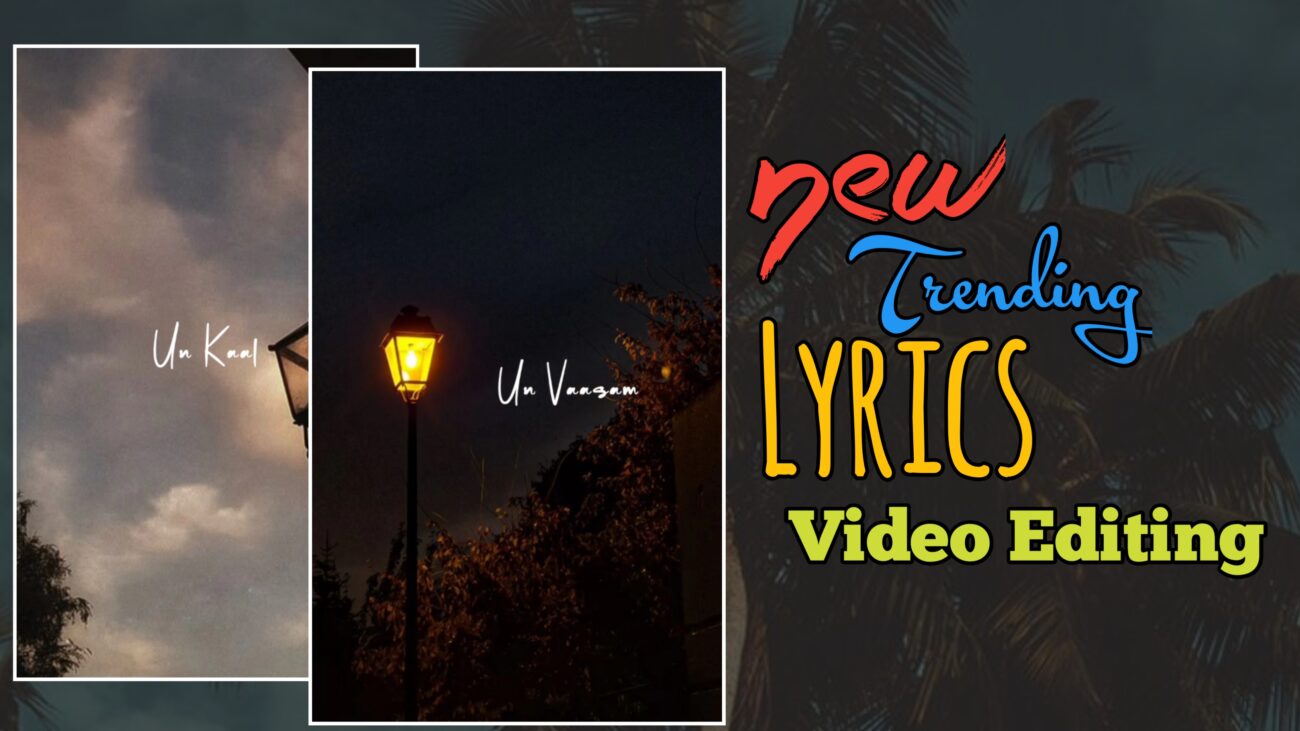
இன்றைய சமூக ஊடக உலகில் Instagram Reels மற்றும் YouTube Shorts போன்ற குறும்பட வீடியோக்கள் மிக வேகமாக வளர்ந்து வருகின்றன. குறிப்பாக aesthetic style-ல் உருவாக்கப்படும் lyrics videos தற்போது மிகவும் trend ஆகிவிட்டன. ஒரு நல்ல பாடல், அதற்கேற்ற visuals, மற்றும் smooth text animation ஆகியவை சேர்ந்தால் மிகவும் professional look கொண்ட video உருவாக்க முடியும்.
பலர் video editing செய்ய பெரிய computer software தேவை என்று நினைக்கிறார்கள். ஆனால் இப்போது mobile phone-ல் கூட powerful editing apps மூலம் professional level editing செய்ய முடிகிறது. அதில் மிகவும் பிரபலமான application தான் Alight Motion. இந்த app-ஐ பயன்படுத்தி animation, motion graphics, visual effects போன்ற advanced editing techniques எளிதாக பயன்படுத்த முடியும்.
இந்த கட்டுரையில் Instagram-ல் trend ஆகும் lyrics video editing-ஐ Alight Motion app மூலம் எப்படி உருவாக்குவது என்பதை step-by-step முறையில் விரிவாக பார்க்கலாம்.
Alight Motion App என்றால் என்ன?
Alight Motion என்பது mobile-ல் professional video editing செய்ய உதவும் ஒரு powerful application ஆகும். இந்த app மூலம் motion graphics, animation, visual effects, color correction, masking போன்ற advanced editing techniques பயன்படுத்த முடியும்.
இந்த app-இன் முக்கியமான features:
- Keyframe animation
- Visual effects
- Professional text animation
- Layer based editing
- Motion graphics
இந்த features காரணமாக Alight Motion தற்போது Instagram Reels editing-க்கு மிகவும் popular app ஆக உள்ளது.
Editing தொடங்குவதற்கு முன் தேவையான Materials
இந்த editing process-ஐ ஆரம்பிப்பதற்கு முன் சில materials தேவைப்படும். அவை:
- Song / Audio
- Background images
- Lyrics text
- Fonts
- PNG elements (optional)
இந்த materials அனைத்தையும் முன்பே தயார் செய்து வைத்தால் editing மிகவும் எளிதாக இருக்கும்.
Alight Motion Project Create செய்வது
முதலில் Alight Motion app open செய்ய வேண்டும். அதன் பிறகு plus (+) icon click செய்து new project create செய்ய வேண்டும்.
Project create செய்யும்போது கீழ்கண்ட settings பயன்படுத்தலாம்:
- Aspect Ratio – 9:16
- Resolution – 1080p
- Frame Rate – 30fps
இந்த settings Instagram Reels-க்கு மிகவும் suitable.
Project create செய்த பிறகு முதலில் song அல்லது audio add செய்ய வேண்டும். Audio add செய்த பிறகு lyrics வரும் இடங்களில் markers வைத்து editing செய்வது மிகவும் உதவியாக இருக்கும்.
Lyrics Timing Markers சேர்ப்பது
Song play செய்து lyrics வரும் இடங்களில் markers add செய்ய வேண்டும். ஒவ்வொரு line-க்கும் ஒரு marker வைக்கலாம்.
Lyrics words சிறியதாக இருந்தால் இரண்டு lines ஒன்றாகவும் வைத்துக் கொள்ளலாம். இது உங்கள் editing style-க்கு ஏற்ப மாறும்.
Markers பயன்படுத்துவதன் முக்கிய காரணம் lyrics timing சரியாக sync ஆக இருக்க வேண்டும் என்பதற்காக.
Background Images சேர்ப்பது
Lyrics video-க்கு aesthetic style images பயன்படுத்தினால் video மிகவும் attractive ஆக இருக்கும்.
Pinterest போன்ற apps மூலம் aesthetic images download செய்யலாம். இல்லையெனில் song mood-க்கு ஏற்ப couple images அல்லது cinematic images கூட பயன்படுத்தலாம்.
Image add செய்த பிறகு timeline-ல் markers-க்கு ஏற்ப cut செய்ய வேண்டும். ஒவ்வொரு lyrics portion-க்கும் ஒரு image பயன்படுத்தினால் video structured ஆக இருக்கும்.
Image Fill Composition Area
Image add செய்த பிறகு சில images screen-க்கு properly fit ஆக இருக்காது.
அதற்காக image layer select செய்து மேலே இருக்கும் three dots menu click செய்ய வேண்டும்.
அதில் Fill Composition Area option இருக்கும். அதை select செய்தால் image screen முழுவதும் fit ஆகும்.
இந்த process ஒவ்வொரு image-க்கும் செய்ய வேண்டும்.
Image Zoom Animation
Image-க்கு motion feel கொடுக்க zoom animation பயன்படுத்தலாம்.
Image layer select செய்து Move & Transform option செல்ல வேண்டும்.
அதில் Scale option இருக்கும்.
முதலில் starting position-ல் ஒரு keyframe add செய்ய வேண்டும். அதன் பிறகு end பகுதியில் இன்னொரு keyframe add செய்ய வேண்டும்.
Starting value slightly increase செய்து end value decrease செய்தால் smooth zoom effect கிடைக்கும்.
இந்த animation image-க்கு cinematic feel கொடுக்கும்.
Image Move Animation
Zoom animation மட்டும் இல்லாமல் image horizontal movement கூட add செய்யலாம்.
Move option select செய்து starting position-ல் ஒரு keyframe add செய்ய வேண்டும்.
அடுத்த keyframe-ல் image-ஐ slight left அல்லது right side move செய்ய வேண்டும்.
அடுத்த image-ல் opposite direction movement கொடுத்தால் video dynamic ஆக இருக்கும்.
Graph பயன்படுத்தி Animation Smooth ஆக்குவது
Animation சில நேரங்களில் jerky ஆக இருக்கலாம்.
அதை smooth ஆக்க graph option பயன்படுத்த வேண்டும்.
Keyframes select செய்து graph option open செய்ய வேண்டும்.
Smooth curve graph apply செய்தால் movement natural ஆக இருக்கும்.
Tiles Effect பயன்படுத்துவது
Zoom animation பயன்படுத்தும்போது image edge-ல் black area visible ஆகலாம்.
அதை avoid செய்ய Tiles effect பயன்படுத்தலாம்.
Effects → Add Effect → Distortion/Warp → Tiles
Tiles effect add செய்து mirror option enable செய்தால் image edges seamless ஆக இருக்கும்.
Zoom Blur Effect
Video-க்கு cinematic feel கொடுக்க zoom blur effect பயன்படுத்தலாம்.
Effects → Add Effect → Blur → Zoom Blur
Zoom blur strength option-ல் keyframe add செய்ய வேண்டும்.
Starting பகுதியில் blur slightly இருக்கும். அதன் பிறகு blur value zero ஆக reduce செய்தால் smooth reveal effect கிடைக்கும்.
Lyrics Text சேர்ப்பது
Image animation complete ஆன பிறகு lyrics add செய்யலாம்.
Text option பயன்படுத்தி lyrics type செய்ய வேண்டும்.
Font selection மிகவும் முக்கியம். Stylish font பயன்படுத்தினால் video aesthetic ஆக இருக்கும்.
இந்த tutorial-ல் example ஆக Bling Youngster Personal Use font பயன்படுத்தலாம்.
Font size பொதுவாக 40 முதல் 48 வரை வைத்தால் நல்லது.
Text-ஐ screen center-ல் align செய்ய வேண்டும்.
Text Spacing Effect
Lyrics-க்கு stylish look கொடுக்க text spacing effect பயன்படுத்தலாம்.
Effects → Add Effect → Text → Text Spacing
Letter spacing value சுமார் 5 வைத்தால் letters இடைவெளி aesthetically இருக்கும்.
Fade Out By Letter Effect
Lyrics-க்கு animation கொடுக்க text transform effect பயன்படுத்தலாம்.
Effects → Add Effect → Text Transform
அதில் Fade Out by Letter option இருக்கும்.
இந்த effect letters ஒன்றன்பின் ஒன்றாக animate ஆகும் effect கொடுக்கும்.
Offset Animation
Text transform settings-ல் transform option இருக்கும்.
அதில் offset value இருக்கும்.
Y offset value starting-ல் negative value இருக்கும். அதை zero ஆக மாற்றினால் text smooth movement கிடைக்கும்.
Random Order Option
Text animation natural feel கொடுக்க random order option enable செய்யலாம்.
இந்த option enable செய்தால் letters random order-ல் animate ஆகும்.
Effects Copy மற்றும் Paste
ஒரு lyric layer-க்கு effects set செய்த பிறகு அதையே copy செய்து மற்ற lyrics layers-க்கு paste செய்யலாம்.
ஆனால் சில versions-ல் paste style properly work ஆகாமல் இருக்கலாம்.
அப்படி இருந்தால் effects individually copy செய்து apply செய்ய வேண்டும்.
Final Preview மற்றும் Export
Editing complete ஆன பிறகு video preview செய்து check செய்ய வேண்டும்.
Check செய்ய வேண்டியவை:
- Lyrics timing சரியா
- Animation smooth ஆக இருக்கிறதா
- Image movement natural ஆக இருக்கிறதா
அனைத்தும் சரியாக இருந்தால் video export செய்யலாம்.
Export settings:
Resolution – 1080p
Frame Rate – 30fps
High Quality Export
Export செய்யப்பட்ட video Instagram Reels-ல் upload செய்யலாம்.
முடிவுரை
Alight Motion பயன்படுத்தி Instagram trending lyrics video உருவாக்குவது மிகவும் எளிதானது. சரியான images, smooth animation, மற்றும் stylish text effects பயன்படுத்தினால் mobile phone-ல் கூட professional video editing செய்ய முடியும்.
இந்த tutorial-ல் கூறப்பட்ட steps-ஐ தொடர்ந்து practice செய்தால் editing skills மேம்படும். தொடர்ந்து creative videos upload செய்தால் Instagram போன்ற platforms-ல் உங்கள் content வைரலாகும் வாய்ப்பும் அதிகமாகும்.
