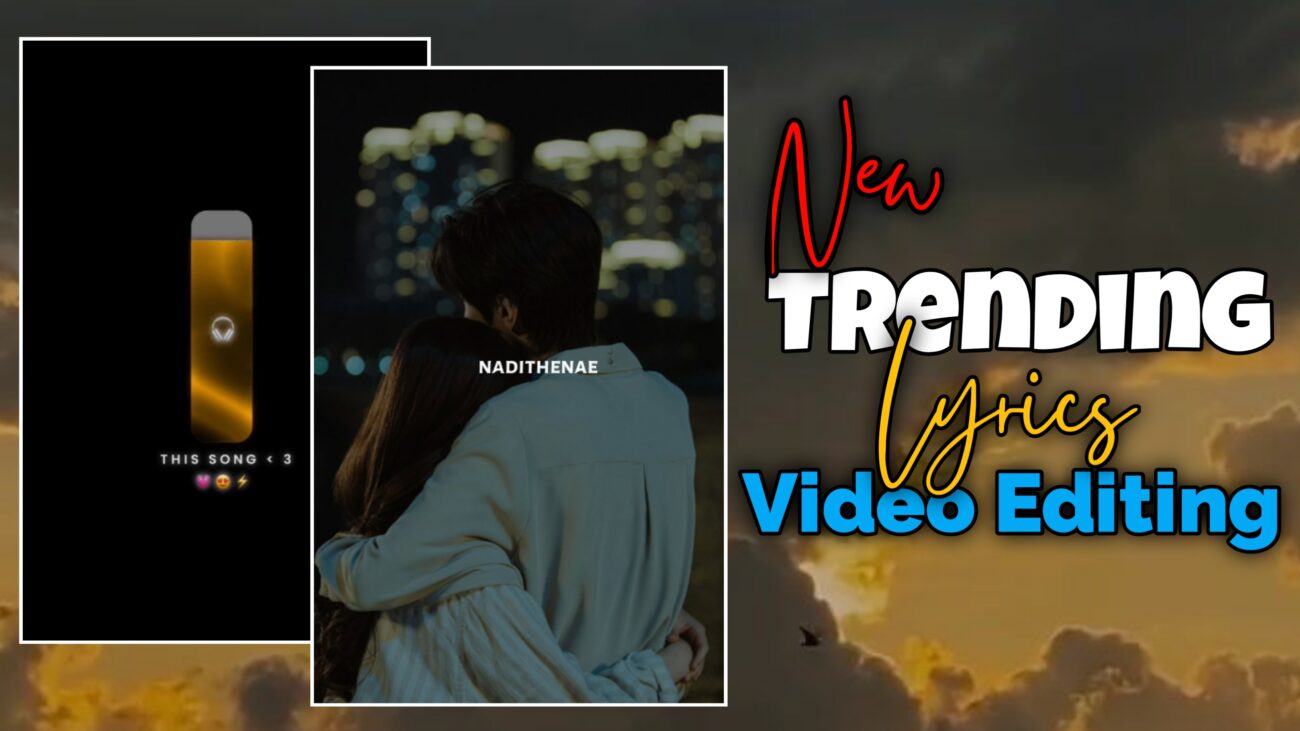
இன்றைய சமூக ஊடக காலத்தில் Instagram Reels மற்றும் YouTube Shorts போன்ற தளங்களில் சிறிய வீடியோக்கள் மிக வேகமாக வைரலாகின்றன. குறிப்பாக பாடல் வரிகளுடன் உருவாக்கப்படும் Lyrics Videos தற்போது மிகவும் பிரபலமானதாக மாறிவிட்டன. ஒரு நல்ல பாடல், அதற்கு ஏற்ற படங்கள், மற்றும் smooth animation ஆகியவை சேர்ந்தால் மிகவும் அழகான aesthetic video ஒன்றை உருவாக்க முடியும்.
பலர் video editing செய்ய பெரிய software அல்லது computer தேவை என்று நினைக்கிறார்கள். ஆனால் தற்போது mobile phone-ல் கூட professional editing செய்ய முடிகிறது. அதற்கு மிகவும் உதவும் application தான் Alight Motion. இந்த app மூலம் motion graphics, text animation, visual effects போன்ற பல advanced editing techniques-ஐ பயன்படுத்த முடியும்.
இந்த கட்டுரையில் Instagram-ல் trend ஆகும் lyrics video-ஐ Alight Motion app பயன்படுத்தி எவ்வாறு உருவாக்குவது என்பதை முழுமையாகப் பார்க்கலாம்.
Alight Motion App என்றால் என்ன?
Alight Motion என்பது mobile video editing உலகில் மிகவும் பிரபலமான application ஆகும். இது Android மற்றும் iOS இரண்டிலும் கிடைக்கிறது. இந்த app மூலம் professional level animation மற்றும் visual effects-ஐ mobile phone-ல் கூட உருவாக்க முடியும்.
Alight Motion app-இன் முக்கியமான அம்சங்கள்:
- Keyframe animation
- Motion graphics support
- Text animation effects
- Layer based editing system
- Visual effects library
இந்த features காரணமாக Instagram Reels creators பலரும் இந்த app-ஐ பயன்படுத்துகின்றனர்.
Project Setup செய்வது
முதலில் Alight Motion app-ஐ open செய்ய வேண்டும். அதன் பிறகு new project create செய்ய வேண்டும்.
அதற்கு:
- Plus (+) icon-ஐ click செய்ய வேண்டும்
- தேவையான project settings-ஐ select செய்ய வேண்டும்
பொதுவாக Instagram Reels editing-க்கு கீழ்கண்ட settings பயன்படுத்தலாம்:
- Aspect Ratio – 9:16
- Resolution – 1080p
- Frame Rate – 30fps
இந்த settings பயன்படுத்தினால் video quality நல்லதாக இருக்கும்.
Project create செய்த பிறகு முதலில் audio அல்லது song add செய்ய வேண்டும். ஏனெனில் lyrics timing சரியாக இருக்க audio மிகவும் முக்கியம்.
Lyrics Timing Markers சேர்ப்பது
Song add செய்த பிறகு அந்த song-ல் lyrics வரும் இடங்களை கவனமாக கேட்டு markers சேர்க்க வேண்டும்.
ஒவ்வொரு line வரும் இடத்திலும் marker வைத்து கொள்ளலாம். சில சமயம் ஒரு line மிகவும் சிறியதாக இருந்தால் இரண்டு lines ஒன்றாக வைத்துக் கொள்ளலாம்.
Markers பயன்படுத்துவதன் மூலம் editing செய்யும் போது timing சரியாக இருக்கும்.
Template பயன்படுத்துவது
Video ஆரம்பத்தில் ஒரு template animation பயன்படுத்தினால் video professional look பெறும்.
அதற்காக:
- ஆரம்பத்தில் ஒரு template layer add செய்ய வேண்டும்
- அந்த template-ஐ song timing-க்கு ஏற்ப adjust செய்ய வேண்டும்
Template duration அதிகமாக இருந்தால் timer icon பயன்படுத்தி cut செய்யலாம். Timer option பயன்படுத்தினால் effect கெடாமல் duration மட்டும் குறையும்.
Background Images சேர்ப்பது
Lyrics video-க்கு visual feel கொடுக்க images மிகவும் முக்கியம்.
ஒவ்வொரு lyrics line-க்கும் ஒரு image பயன்படுத்தினால் video structured ஆக இருக்கும்.
Images download செய்ய:
- Instagram references
- Google Images
போன்ற இடங்களில் aesthetic images download செய்யலாம்.
Image add செய்த பிறகு song markers-க்கு ஏற்ப cut செய்ய வேண்டும்.
Fill Composition Area
சில images screen-க்கு properly fit ஆகாது. அதனால் image layer-ஐ select செய்து மேலே இருக்கும் three dots menu-ஐ click செய்ய வேண்டும்.
அதில் Fill Composition Area option இருக்கும்.
அதை select செய்தால் image screen முழுவதும் fit ஆகும்.
இந்த process எல்லா images-க்கும் செய்ய வேண்டும்.
Tiles Effect பயன்படுத்துவது
Image zoom animation பயன்படுத்தும்போது image edge-ல் black area தெரியலாம். அதை avoid செய்ய Tiles effect பயன்படுத்தலாம்.
அதற்காக:
Effects → Add Effect → Distortion/Warp → Tiles
Tiles effect add செய்த பிறகு Mirror option enable செய்ய வேண்டும்.
இதனால் image edges seamless ஆக இருக்கும்.
Image Zoom Animation
Image static-ஆ இருந்தால் video boring ஆக இருக்கும். அதனால் image-க்கு zoom animation கொடுக்க வேண்டும்.
Image layer select செய்து:
Move & Transform → Scale
option open செய்ய வேண்டும்.
அதில் மூன்று keyframes add செய்ய வேண்டும்:
- Starting keyframe
- Middle keyframe
- Ending keyframe
Starting value-ஐ சிறிது increase செய்ய வேண்டும். Ending value-ஐ decrease செய்ய வேண்டும்.
இதனால் smooth zoom in / zoom out effect கிடைக்கும்.
Animation Graph பயன்படுத்துவது
Animation சில நேரங்களில் sudden movement போல இருக்கும்.
அதை smooth ஆக்க graph option பயன்படுத்த வேண்டும்.
Keyframes select செய்து Graph option open செய்ய வேண்டும்.
Smooth curve graph apply செய்தால் animation natural ஆக இருக்கும்.
Effects Copy & Paste
ஒரு image layer-க்கு animation set செய்த பிறகு அதையே மற்ற image layers-க்கு copy செய்து paste செய்யலாம்.
Image layer select செய்து:
Copy Layer → Paste Style
option பயன்படுத்தலாம்.
Move & Transform effect மட்டும் select செய்து paste செய்தால் அந்த animation மற்ற layers-க்கும் apply ஆகும்.
Lyrics Text சேர்ப்பது
Images animation முடிந்த பிறகு lyrics add செய்யலாம்.
Text option open செய்து lyrics type செய்ய வேண்டும்.
இந்த tutorial-ல் example ஆக Algeria Sans Bold font பயன்படுத்தலாம்.
Text settings:
- Font color – White
- Font size – சுமார் 20
- Alignment – Center
இந்த settings aesthetic look கொடுக்கும்.
Text Animation Effect
Lyrics-க்கு animation கொடுக்க Text Transform effect பயன்படுத்தலாம்.
Effects → Add Effect → Text → Text Transform
அதில் Range option இருக்கும்.
Range Start மற்றும் Range End parameters-க்கு keyframes add செய்ய வேண்டும்.
Start value சுமார் 30 வைத்தால் letters gradually appear ஆகும்.
End value சுமார் 65 வைத்தால் animation smooth ஆக இருக்கும்.
Alpha Setting
Text Transform effect-ல் Alpha option இருக்கும்.
Alpha value-ஐ 1 ஆக வைத்தால் text fully visible ஆகும்.
Easing Settings
Animation smooth ஆக இருக்க easing settings பயன்படுத்த வேண்டும்.
Interpolation → Easing
அதில் Easy Out value 100 வைத்தால் animation smooth ஆக இருக்கும்.
Random Order Option
Letters ஒரே நேரத்தில் animate ஆகாமல் natural feel கொடுக்க Random Order option enable செய்யலாம்.
இதனால் letters random order-ல் appear ஆகும்.
Overlap Setting
Overlap value சுமார் 65 வைத்தால் letters animation timing நல்ல balance ஆக இருக்கும்.
Sheet Value
Sheet option-ல் value 001 அல்லது 002 வைத்தால் animation subtle ஆக இருக்கும்.
அதிகமாக வைத்தால் text blink ஆகும்.
Final Preview
Editing complete ஆன பிறகு video preview செய்ய வேண்டும்.
Check செய்ய வேண்டியவை:
- Lyrics timing சரியா
- Animation smooth ஆக இருக்கிறதா
- Images properly align ஆக உள்ளதா
அனைத்தும் சரியாக இருந்தால் video export செய்யலாம்.
Video Export Settings
Export செய்யும்போது கீழ்கண்ட settings பயன்படுத்தலாம்:
Resolution – 1080p
Frame Rate – 30fps
Quality – High
இந்த settings Instagram Reels-க்கு perfect.
முடிவுரை
Alight Motion பயன்படுத்தி Instagram trending lyrics videos உருவாக்குவது மிகவும் எளிதானது. சரியான images, smooth animation, மற்றும் stylish text effects பயன்படுத்தினால் mobile phone-ல் கூட professional video editing செய்ய முடியும்.
இந்த tutorial-ல் கூறப்பட்ட steps-ஐ தொடர்ந்து practice செய்தால் editing skills மேம்படும். தொடர்ந்து creative videos upload செய்தால் Instagram போன்ற social media platforms-ல் உங்கள் videos வைரலாகும் வாய்ப்பு அதிகமாகும்.
