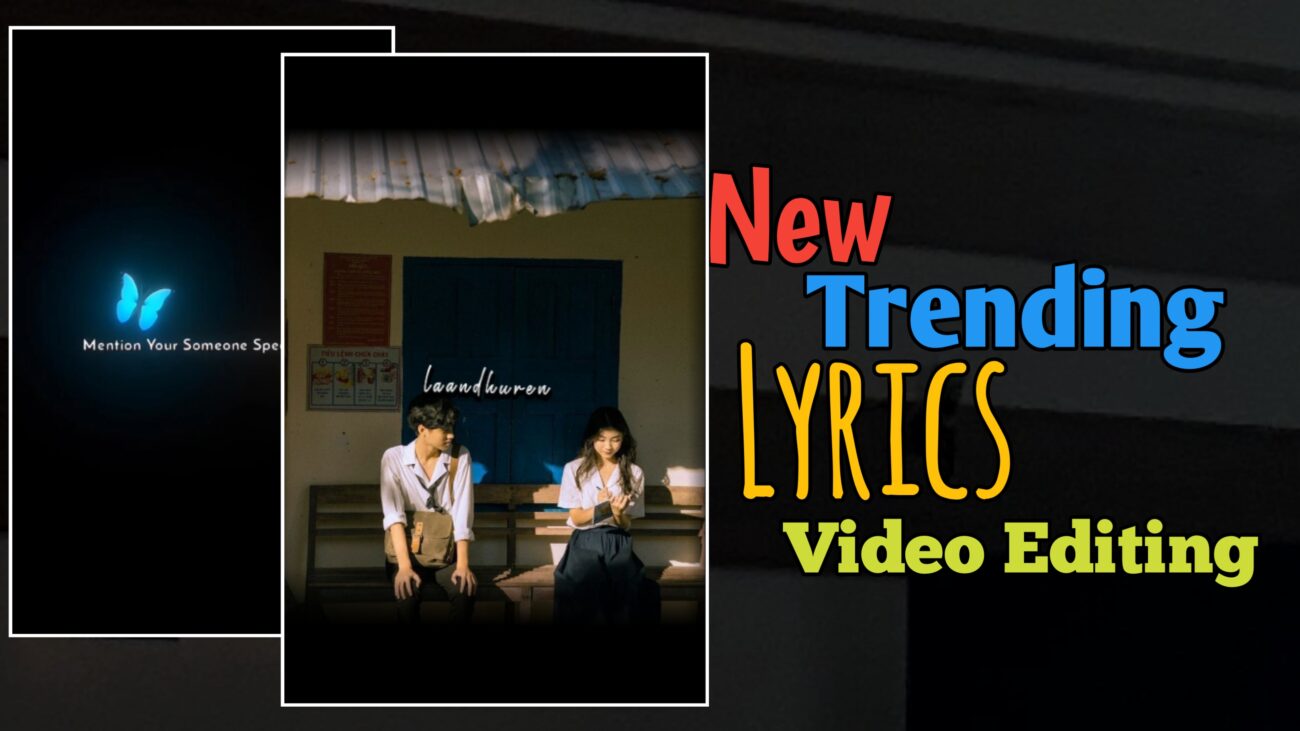
Instagram Reels மற்றும் Shorts platformல trending ஆகிக்கொண்டிருக்கும் contentல முக்கியமானது lyrics video editing தான். Smooth animations, creative effects, மற்றும் synced text ஆகியவை சேர்ந்து இந்த videos மிகவும் attractive ஆக இருக்கும்.
இந்த articleல, Alight Motion app பயன்படுத்தி ஒரு professional-level lyrics video எப்படி create பண்ணலாம் என்பதை step-by-step ஆக பார்ப்போம்.
Project Setup செய்வது எப்படி?
முதலில் Alight Motion app open பண்ணிக்கோங்க.
- “+” icon கிளிக் செய்யவும்
- தேவையான settings select பண்ணவும்:
- Ratio (9:16 recommended)
- Resolution
- Frame Rate
- Background
அதுக்கப்புறம் Create Project கொடுக்கவும்.
பிறகு உங்கள் song அல்லது audio add பண்ணி, ஒவ்வொரு lyricக்கும் mark வைத்து sync பண்ணிக்கோங்க.
Template மற்றும் Timing Adjust செய்வது
ஒரு template add பண்ணின பிறகு:
- அதன் duration expand அல்லது cut பண்ணலாம்
- Timer option use பண்ணி lyricsக்கு match ஆக adjust பண்ணலாம்
இந்த stepல timing சரியாக இருந்தா தான் final output smooth ஆக இருக்கும்.
Image Add செய்து Blur Background Effect உருவாக்குவது
Lyrics videoக்கு attractive look கொடுக்க:
- Image add பண்ணவும்
- Plus icon → Shape (square) add பண்ணவும்
- Shapeயை imageக்கு fit ஆக zoom பண்ணவும்
அதுக்கப்புறம்:
- Blending & Opacity → Mask apply பண்ணவும்
- Shape layerக்கு Effect add பண்ணவும்
- Blur → Box Blur select பண்ணவும்
- Strength value: 340–380 range
இந்த technique use பண்ணினா, image background smooth blur effect கிடைக்கும்.
Image Warp Animation Effect
Imageக்கு dynamic feel கொடுக்க:
- Effects → Distortion & Warp → Fractal Warp
- Positionக்கு animation key add பண்ணவும்
- X values:
- Start: 200
- End: 1000
- Magnitude: 0.010 – 15
- Octaves: 9
இந்த settings மூலம் image light wave movement மாதிரி animate ஆகும்.
Zoom Animation (Move & Transform)
Imageக்கு additional motion add பண்ண:
- Move & Transform → Scale
- 3 keyframes add பண்ணவும்:
- Start → no change
- Middle → slightly increase (50–60)
- End → no change
இதனால் image zoom in → zoom out effect வரும்.
Lyrics Text Add செய்வது
இப்போ lyrics add பண்ணலாம்:
- Text option select பண்ணி lyrics type பண்ணவும்
- Font: “Destroy Free” (example)
- Size: 32–36
- Color: White
Text placement clearஆ தெரியும் மாதிரி adjust பண்ணவும்.
Shadow Effect Create செய்வது
Text highlight ஆக தெரிய:
- Text duplicate பண்ணவும்
- Border & Shadow → Add Border
- Size: 5
- Color: Black
அதுக்கப்புறம் duplicate textஐ slightா move பண்ணினா, shadow effect மாதிரி தெரியும்.
Text Effects மற்றும் Animation
Text Spacing
- Effect → Text → Text Spacing
- Letter spacing: 7–8
Fractal Warp (Textக்கு)
- X values:
- Start: 600
- End: 2000
- Magnitude: 0.025
- Octaves: 9
Text Transform (Fade Effect)
- Fade Out by Letter select பண்ணவும்
- Range animation adjust பண்ணவும்
- Offset:
- Y = 0
- X = 30
- Ease In: -100
இந்த combination மூலம் text smoothஆ appear & disappear ஆகும்.
Blur Ending Effect (Lyrics Group)
Final polishக்காக:
- Lyrics layers group பண்ணவும்
- Effect → Blur → Directional Blur
- Endக்கு முன்னாடி animation key add பண்ணவும்
- Strength gradualஆ increase ஆகும் மாதிரி set பண்ணவும்
இதனால் lyrics smooth fade effect கிடைக்கும்.
Effects Copy & Reuse செய்வது
ஒரு lyricக்கு effect complete பண்ணின பிறகு:
- அதை copy பண்ணி
- மற்ற lyricsக்கு paste பண்ணலாம்
இதனால் consistent style maintain ஆகும் மற்றும் time save ஆகும்.
Final Output Ready செய்வது
- எல்லா imagesக்கும் effects apply பண்ணவும்
- Lyrics timing check பண்ணவும்
- முழு video preview பண்ணவும்
Everything சரியாக இருந்தா export செய்யலாம்.
Conclusion
Alight Motion பயன்படுத்தி lyrics video உருவாக்குவது initially complex மாதிரி தோன்றினாலும், step-by-step follow பண்ணினா அது மிகவும் easy ஆகிவிடும்.
Correct timing, proper effects, மற்றும் clean animation ஆகியவற்றை பயன்படுத்தினால், உங்கள் videos professional qualityயில் இருக்கும். தொடர்ந்து practice பண்ணினால், உங்கள் Instagram reels easily standout ஆகும்.
