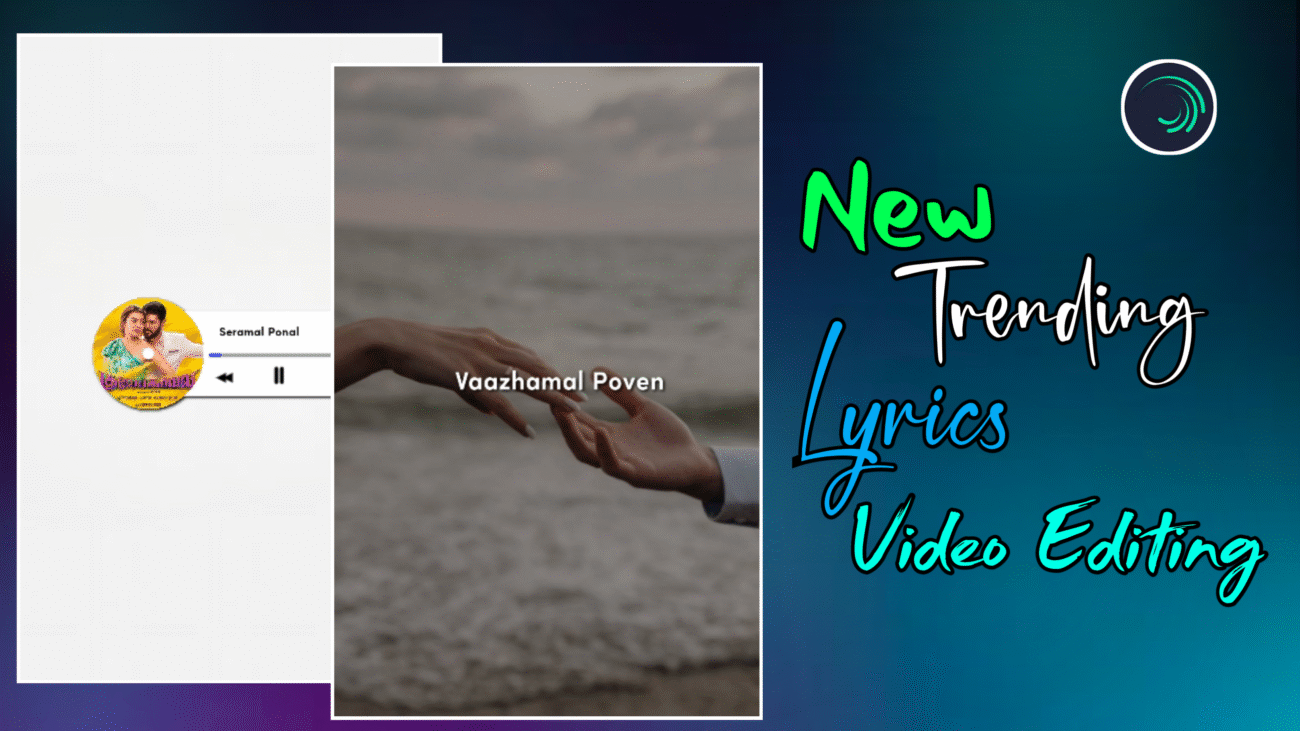
இன்றைய சமூக ஊடக காலத்தில் Instagram Reels மற்றும் YouTube Shorts போன்ற குறும்பட வீடியோக்கள் மிகவும் பிரபலமாகிவிட்டன. குறிப்பாக aesthetic style editing மற்றும் music player design கொண்ட lyrics videos தற்போது மிகவும் trending ஆக உள்ளன. ஒரு பாடலின் cover image, play button animation, மற்றும் smooth transition ஆகியவற்றை சேர்த்து video உருவாக்கினால் அது professional look பெறும்.
இந்த கட்டுரையில் Alight Motion application பயன்படுத்தி Instagram-ல் trend ஆகும் music player style lyrics video editing எப்படி செய்வது என்பதை முழுமையாகவும் எளிமையாகவும் பார்க்கலாம். இந்த வழிமுறைகள் தொடக்கநிலை video editors கூட எளிதாக புரிந்து கொள்ளும் வகையில் step-by-step முறையில் விளக்கப்படுகின்றன.
Alight Motion App என்ன?
Alight Motion என்பது mobile phone-ல் professional video editing செய்ய உதவும் ஒரு சிறந்த application ஆகும். இந்த app மூலம் motion graphics, animation, visual effects, masking, keyframe animation போன்ற advanced editing techniques பயன்படுத்த முடியும்.
பல YouTube creators மற்றும் Instagram editors இந்த app-ஐ பயன்படுத்தி professional quality videos உருவாக்குகின்றனர். mobile phone-ல் editing செய்ய விரும்புவோருக்கு இது மிகவும் உதவியாக இருக்கும்.
Project உருவாக்குவது
Editing process ஆரம்பிக்க முதலில் Alight Motion app open செய்ய வேண்டும்.
App open செய்த பிறகு கீழே இருக்கும் Plus (+) icon click செய்து புதிய project create செய்ய வேண்டும்.
Project create செய்யும்போது கீழ்க்கண்ட settings பயன்படுத்தலாம்:
- Aspect Ratio – 9:16
- Resolution – 1080p
- Frame Rate – 30fps
- Background – Black அல்லது Transparent
இந்த settings Instagram Reels editing-க்கு மிகவும் suitable.
Project create செய்த பிறகு timeline open ஆகும். அப்போது editing செய்ய தேவையான layers அனைத்தையும் add செய்யலாம்.
Model Image சேர்ப்பது
இந்த editing-ல் முக்கியமாக ஒரு model image அல்லது song cover image பயன்படுத்தப்படுகிறது.
முதலில் Plus icon → Image/Video option மூலம் உங்கள் image-ஐ project-க்கு add செய்ய வேண்டும்.
Example-ஆக song cover screenshot அல்லது aesthetic model image பயன்படுத்தலாம்.
Image add செய்த பிறகு அதை screen center-ல் align செய்து தேவையான அளவுக்கு resize செய்ய வேண்டும்.
Circle Shape உருவாக்குவது
Music player design உருவாக்குவதற்கு முதலில் ஒரு Circle Shape create செய்ய வேண்டும்.
அதற்காக:
Plus icon → Shape → Circle
Circle add செய்த பிறகு அதன் size increase செய்து model image இருக்கும் இடத்திற்கு ஏற்ப adjust செய்ய வேண்டும்.
இந்த circle music player frame போல இருக்கும்.
அதன் பின்னர் circle color white அல்லது light color ஆக மாற்றலாம்.
Rectangle Shape உருவாக்குவது
Circle கீழே ஒரு rectangular design இருக்கும்.
அதற்காக:
Plus icon → Shape → Rectangle
Rectangle shape add செய்து அதன் width மற்றும் height adjust செய்ய வேண்டும்.
Edit Shape option பயன்படுத்தி X மற்றும் Y values மூலம் size correct ஆக அமைக்கலாம்.
Rectangle corners round ஆக இருக்க Radius value increase செய்யலாம். உதாரணமாக 40 வரை increase செய்தால் soft rounded design கிடைக்கும்.
Play Button உருவாக்குவது
Music player style editing-ல் முக்கியமான element play button ஆகும்.
Play button உருவாக்க:
Plus icon → Shape → Triangle
Triangle shape add செய்து அதன் size decrease செய்ய வேண்டும்.
அதன் color black அல்லது dark color ஆக மாற்றலாம்.
Triangle shape-ஐ circle center-ல் align செய்ய வேண்டும். இது play icon போல இருக்கும்.
Previous மற்றும் Next Button உருவாக்குவது
Music player design-ல் previous மற்றும் next buttons இருக்கும்.
இதற்காக play button triangle shape-ஐ duplicate செய்யலாம்.
Duplicate செய்யப்பட்ட shape-ஐ slightly move செய்து double triangle icon போல அமைக்க வேண்டும்.
இரண்டு shapes-ஐ select செய்து Group செய்ய வேண்டும்.
அதன்பிறகு அந்த group-ஐ duplicate செய்து rotate செய்து opposite side-ல் place செய்யலாம்.
இதனால் previous மற்றும் next button icons உருவாகும்.
Progress Bar உருவாக்குவது
Music player design-ல் song progress bar இருக்கும்.
இதற்காக:
Plus icon → Shape → Square
Square shape add செய்து small rectangle போல adjust செய்ய வேண்டும்.
அதன் color grey அல்லது light color ஆக மாற்றலாம்.
பின்னர் duplicate செய்து progress bar highlight effect கொடுக்கலாம்.
Wipe Effect பயன்படுத்துவது
Progress bar animation கொடுக்க Wipe effect பயன்படுத்தலாம்.
Effects → Matte/Mask → Wipe
Wipe effect add செய்து End value adjust செய்தால் progress bar gradually move ஆகும்.
இந்த effect மூலம் song progress animation போல தோன்றும்.
Circle Rotation Animation
Song change ஆகும் போது circle rotate ஆகும் effect கொடுக்கலாம்.
Circle layer select செய்து:
Move & Transform → Rotation
Rotation property-ல் keyframes add செய்ய வேண்டும்.
முதல் keyframe starting position.
அடுத்த keyframe-ல் 360° rotation value கொடுக்கலாம்.
இதனால் circle முழுமையாக rotate ஆகும்.
360° rotation கொடுத்தால் image normal position-க்கு திரும்பும்.
Arrow Animation சேர்ப்பது
Song change ஆகும் போது arrow indicator பயன்படுத்தலாம்.
இதற்காக:
Plus icon → Shape → Arrow
Arrow shape add செய்து அதன் size adjust செய்ய வேண்டும்.
Arrow color black அல்லது white ஆக இருக்கலாம்.
Arrow position next அல்லது previous button-க்கு அருகில் align செய்ய வேண்டும்.
Click Effect உருவாக்குவது
Button click animation கொடுக்க zoom in / zoom out effect பயன்படுத்தலாம்.
Group layer select செய்து:
Move & Transform → Scale
Scale property-ல் மூன்று keyframes add செய்ய வேண்டும்.
- முதல் keyframe – normal size
- இரண்டாவது keyframe – slightly increase
- மூன்றாவது keyframe – மீண்டும் normal size
இதனால் click animation effect கிடைக்கும்.
Mouse Click Sound சேர்ப்பது
Click animation இன்னும் realistic ஆக இருக்க mouse click sound effect சேர்க்கலாம்.
Plus icon → Audio option மூலம் click sound import செய்யலாம்.
Click animation வரும் இடத்தில் அந்த sound place செய்ய வேண்டும்.
இதனால் video realistic feel பெறும்.
Background Circle Effect
Click animation நேரத்தில் background circle effect சேர்த்தால் video visually attractive ஆக இருக்கும்.
Plus icon → Shape → Circle
Circle shape add செய்து icon கீழே place செய்ய வேண்டும்.
அந்த circle layer duration click animation இருக்கும் அளவுக்கு மட்டும் இருக்க வேண்டும்.
இதனால் click moment highlight ஆகும்.
Final Elements சேர்ப்பது
Editing almost complete ஆன பிறகு சில final elements சேர்க்கலாம்.
அவை:
- Speaker icon image
- Song name text
- Artist name text
- Background image
Text add செய்யும்போது stylish font பயன்படுத்தினால் video aesthetic look பெறும்.
Final Preview மற்றும் Export
Editing முடிந்த பிறகு video preview செய்து check செய்ய வேண்டும்.
Check செய்ய வேண்டியவை:
- Animation smooth ஆக இருக்கிறதா
- Button click timing சரியாக இருக்கிறதா
- Rotation effect natural ஆக இருக்கிறதா
அனைத்தும் சரியாக இருந்தால் video export செய்யலாம்.
Export settings:
Resolution – 1080p
Frame Rate – 30fps
High Quality Export
முடிவுரை
Alight Motion பயன்படுத்தி music player style lyrics video உருவாக்குவது மிகவும் creative மற்றும் interesting process ஆகும். சிறிய shapes, animations மற்றும் keyframes பயன்படுத்தி mobile phone-ல் கூட professional level editing செய்ய முடியும்.
இந்த tutorial-ல் கூறப்பட்ட முறைகளை தொடர்ந்து practice செய்தால் editing skills மேம்படும். தொடர்ந்து புதிய ideas கொண்டு videos உருவாக்கினால் Instagram போன்ற platforms-ல் உங்கள் content viral ஆகும் வாய்ப்பும் அதிகரிக்கும்.
