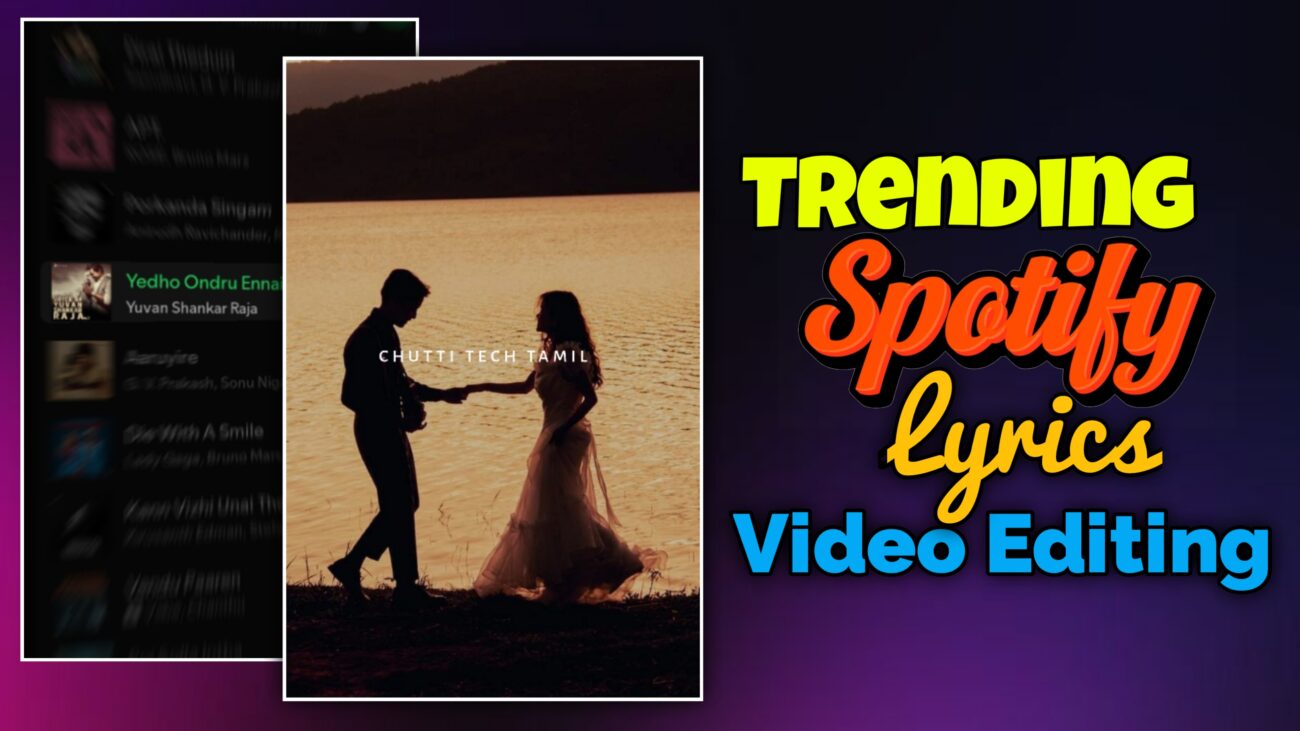
இன்றைய காலத்தில் Instagram Reels, YouTube Shorts மற்றும் Facebook Reels போன்ற short-video platforms மிகவும் பிரபலமாகிவிட்டன. இந்த platforms-ல் அதிகமாக trend ஆகும் content வகைகளில் ஒன்று Instagram Trending Lyrics Videos. இந்த மாதிரி videos பார்ப்பவர்களுக்கு aesthetic feel கொடுப்பதால் அதிக engagement மற்றும் reach கிடைக்கிறது.
நீங்களும் உங்கள் mobile-லேயே Alight Motion app பயன்படுத்தி professional lyrics editing videos உருவாக்கலாம். இந்த guide-ல் step-by-step முறையில் Instagram trending lyrics video edit செய்வது எப்படி என்பதை எளிமையாக பார்க்கலாம்.
Alight Motion App-ஐ Open செய்து Project Create செய்வது
முதலில் உங்கள் mobile-ல் Alight Motion app-ஐ open செய்யுங்கள்.
- App open செய்ததும் Plus (+) icon-ஐ click செய்யுங்கள்.
- உங்கள் video-க்கு தேவையான aspect ratio select செய்யுங்கள்.
- Instagram Reels மற்றும் YouTube Shorts-க்கு பொதுவாக 9:16 ratio பயன்படுத்தப்படுகிறது.
- Project create செய்த பிறகு editing timeline open ஆகும்.
இந்த stage-ல் உங்கள் editing project ready ஆகிவிடும்.
Song Add செய்து Lyrics Timing Mark செய்வது
Lyrics video editing-ல் மிகவும் முக்கியமானது song timing.
- Timeline-ல் Audio option பயன்படுத்தி song add செய்யுங்கள்.
- Song play செய்து ஒவ்வொரு lyrics வரும் இடத்தில் mark செய்யுங்கள்.
- இதனால் lyrics animation add செய்யும்போது timing perfect-ஆ இருக்கும்.
இந்த step சரியாக செய்தால் editing மிகவும் easy ஆகிவிடும்.
Spotify Song Screenshot பயன்படுத்துவது
Instagram trending lyrics edits-ல் பொதுவாக Spotify style music interface பயன்படுத்துவார்கள்.
அதற்காக:
- Spotify app-ல் song play screen-ஐ screenshot எடுக்கவும்.
- அந்த screenshot-ஐ Alight Motion project-க்கு import செய்யவும்.
- Timeline-ல் add செய்து தேவையான இடத்தில் position adjust செய்யவும்.
இந்த method பயன்படுத்தினால் video-க்கு real music player feel கிடைக்கும்.
Screenshot Elements Align செய்வது
Spotify screenshot import செய்த பிறகு அதை correct position-ல் align செய்ய வேண்டும்.
- Screenshot layer select செய்யுங்கள்.
- Move & Transform option open செய்யுங்கள்.
- Song display இருக்கும் இடத்திற்கு screenshot-ஐ move செய்து adjust செய்யுங்கள்.
இந்த alignment சரியாக இருந்தால் video-க்கு clean look கிடைக்கும்.
Layers-ஐ Group செய்வது
Editing process easy ஆக இருக்க layers-ஐ group செய்யலாம்.
Group செய்ய வேண்டிய layers:
- Screenshot layer
- Shape layer
- Search icon
இந்த layers அனைத்தையும் select செய்து Group option பயன்படுத்துங்கள். இதனால் timeline-ல் layers manage செய்ய easy ஆகும்.
Background Image அல்லது Video Add செய்வது
Lyrics video-க்கு background visuals மிகவும் முக்கியம்.
- Plus icon click செய்யுங்கள்.
- Image அல்லது Video import செய்யுங்கள்.
- Timeline-ல் add செய்யுங்கள்.
- பின்னர் Fill Composition Area option select செய்யுங்கள்.
இதனால் background முழு screen-ஐ cover செய்யும்.
Background-க்கு Fade Effect Add செய்வது
Background visuals-க்கு simple animation add செய்தால் video professional look பெறும்.
Steps:
- Image layer select செய்யுங்கள்.
- Effects → Add Effect option-க்கு செல்லுங்கள்.
- Opacity & Visibility option select செய்யுங்கள்.
- Fade In / Fade Out effect add செய்யுங்கள்.
இதனால் background smooth-ஆ appear மற்றும் disappear ஆகும்.
Lyrics Text Add செய்வது
இப்போது video-வில் முக்கியமான பகுதி lyrics text.
- Plus icon click செய்யுங்கள்.
- Text option select செய்யுங்கள்.
- Song lyrics type செய்யுங்கள்.
Font Settings
இந்த editing-க்கு பயன்படுத்தப்படும் font:
Alegria Sans SC Medium
Font பயன்படுத்தும்போது கவனிக்க வேண்டியது:
- அனைத்து letters-மும் small letters ஆக இருக்க வேண்டும்.
- Capital letters avoid செய்யுங்கள்.
இதனால் text style clean-ஆ இருக்கும்.
Text Size Adjust செய்வது
Lyrics text-க்கு balanced size மிகவும் முக்கியம்.
Recommended size:
18
20 size பயன்படுத்தினால் text கொஞ்சம் பெரியதாக தெரியும். அதனால் 18 size balanced look கொடுக்கும்.
Lyrics Visibility Improve செய்வது
Lyrics text clear-ஆ தெரிக வேண்டுமெனில் background visibility-ஐ குறைக்கலாம்.
அதற்கு:
- Background image அல்லது video opacity slightly reduce செய்யுங்கள்.
இதனால் lyrics text clearly visible ஆகும்.
Text Spacing Effect Add செய்வது
Lyrics-க்கு aesthetic look கொடுக்க Text Spacing effect பயன்படுத்தலாம்.
Steps:
- Lyrics layer select செய்யுங்கள்.
- Effects → Add Effect click செய்யுங்கள்.
- Text → Text Spacing select செய்யுங்கள்.
Letter spacing value:
15
இந்த value lyrics style-க்கு clean look கொடுக்கும்.
Wipe Animation Add செய்வது
Lyrics screen-ல் appear ஆகும்போது animation add செய்யலாம்.
Steps:
- Effects → Add Effect
- Matte / Mask Key option select செய்யுங்கள்
- Wipe Transition (Right) effect add செய்யுங்கள்
இந்த animation lyrics-ஐ smooth-ஆ introduce செய்யும்.
Feather Value Adjust செய்வது
Animation smooth-ஆ இருக்க feather value adjust செய்ய வேண்டும்.
Recommended range:
20 – 30
இதனால் text animation soft-ஆ இருக்கும்.
Animation Graph Adjust செய்வது
Default animation graph சில நேரங்களில் smooth இருக்காது.
அதனால்:
- Graph option open செய்யுங்கள்.
- Second graph style select செய்யுங்கள்.
இதனால் animation natural-ஆ இருக்கும்.
Lyrics Move Animation Add செய்வது
Lyrics-க்கு subtle motion add செய்யலாம்.
Steps:
- Lyrics layer select செய்யுங்கள்.
- Move & Transform option open செய்யுங்கள்.
- இரண்டு keyframes add செய்யுங்கள்.
Second keyframe-ல் text-ஐ slightly left side move செய்யுங்கள்.
Important tip:
Text-ஐ அதிகமாக move செய்யக்கூடாது.
Light movement மட்டும் இருந்தால் professional look வரும்.
Final Fade Out Effect Add செய்வது
Lyrics disappear ஆகும்போது final animation add செய்யலாம்.
- Effects → Add Effect
- Fade Out effect add செய்யுங்கள்.
இதனால் animation smooth-ஆ end ஆகும்.
Conclusion
Alight Motion பயன்படுத்தி Instagram trending lyrics videos உருவாக்குவது மிகவும் easy. சரியான timing, clean typography மற்றும் smooth animations பயன்படுத்தினால் உங்கள் videos professional look பெறும். தொடர்ந்து practice செய்தால் உங்கள் lyrics edits Instagram Reels மற்றும் YouTube Shorts போன்ற platforms-ல் அதிக reach பெறும் வாய்ப்பு உள்ளது.
