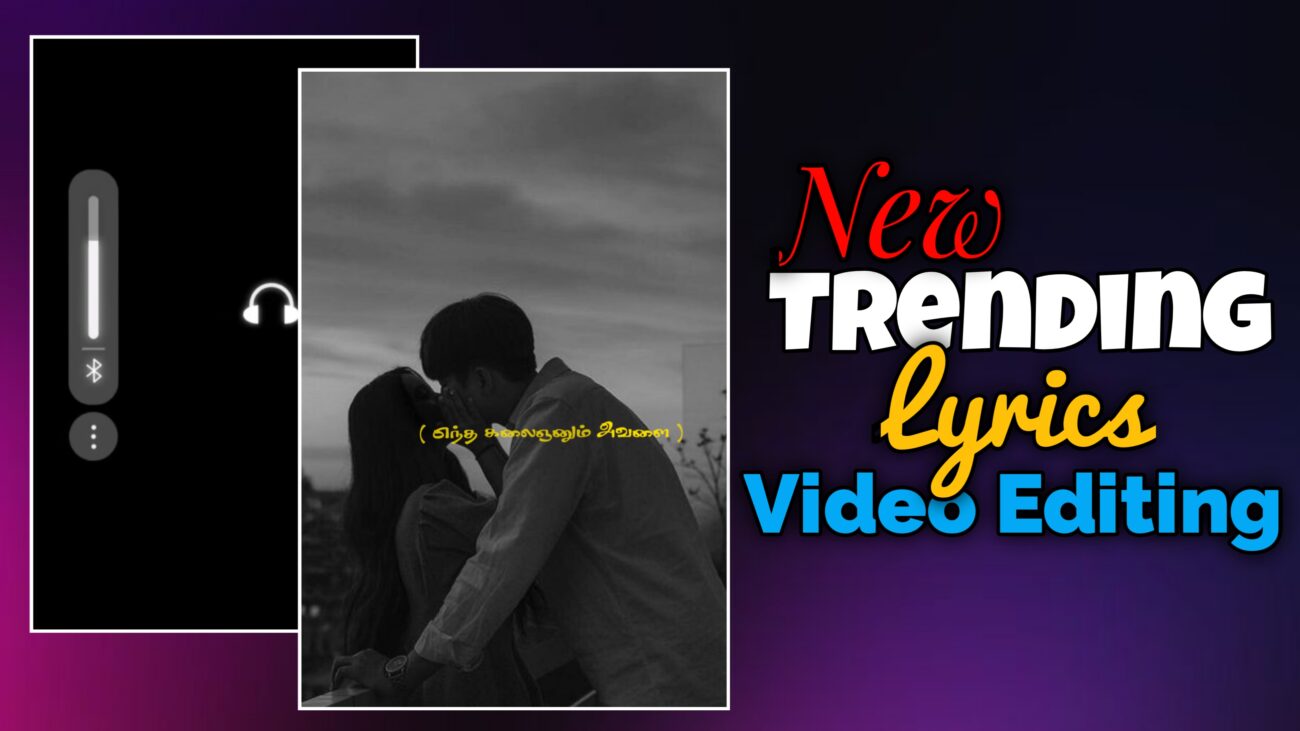
இன்றைய social media உலகத்தில் Instagram Reels, YouTube Shorts மற்றும் Facebook Reels போன்ற short video platforms மிகவும் வேகமாக வளர்ந்து வருகின்றன. இந்த platforms-ல் அதிகமாக trend ஆகும் content வகைகளில் ஒன்று Instagram Trending Lyrics Videos. aesthetic images, smooth animations மற்றும் stylish text effects பயன்படுத்தி செய்யப்படும் இந்த lyrics edits பார்ப்பவர்களுக்கு மிகவும் attractive ஆக இருக்கும்.
நீங்களும் உங்கள் mobile-லேயே Alight Motion app பயன்படுத்தி professional lyrics editing videos உருவாக்கலாம். இந்த guide-ல் step-by-step முறையில் Instagram trending lyrics video edit செய்வது எப்படி என்பதை எளிமையாக பார்க்கலாம்.
Alight Motion App-ல் Project Setup செய்வது
முதலில் உங்கள் mobile-ல் Alight Motion app open செய்யுங்கள்.
- App open செய்ததும் Plus (+) icon click செய்யுங்கள்
- உங்கள் video-க்கு தேவையான aspect ratio select செய்யுங்கள்
- Instagram Reels editing-க்கு பொதுவாக 9:16 ratio பயன்படுத்தப்படுகிறது
Project create செய்த பிறகு editing timeline open ஆகும்.
Song Add செய்து Lyrics Timing Mark செய்வது
Lyrics editing-ல் timing மிகவும் முக்கியம்.
- Project-க்கு தேவையான song அல்லது audio add செய்யுங்கள்
- Song play செய்து ஒவ்வொரு lyrics வரும் இடத்தில் mark செய்யுங்கள்
இந்த method பயன்படுத்தினால் later lyrics animation add செய்யும்போது timing perfect ஆக இருக்கும்.
Template Add செய்து Duration Adjust செய்வது
Song add செய்த பிறகு editing-க்கு ஒரு template layer பயன்படுத்தலாம்.
- Template-ஐ project-க்கு import செய்யுங்கள்
- Lyrics timing-க்கு match ஆக cut அல்லது expand செய்யுங்கள்
- Template adjust செய்யும்போது Timer icon பயன்படுத்துங்கள்
Timer option பயன்படுத்தினால் effect cut ஆகாமல் proper-ஆ இருக்கும்.
Image Add செய்து Fill Composition Area பயன்படுத்துவது
Lyrics video-க்கு background visuals மிகவும் முக்கியம்.
- Plus icon click செய்யுங்கள்
- Image option பயன்படுத்தி தேவையான image add செய்யுங்கள்
- Image add செய்த பிறகு Fill Composition Area option select செய்யுங்கள்
இதனால் image முழு screen-ஐ cover செய்யும்.
Image Duration Adjust செய்வது
ஒரு image பொதுவாக 4 அல்லது 5 lyrics lines வரைக்கும் பயன்படுத்தலாம்.
அதனால்:
- Lyrics timing-க்கு match ஆக image layer expand செய்யுங்கள்
- தேவையான இடத்தில் cut செய்து next image add செய்யலாம்
இந்த method video flow clean ஆக இருக்க உதவும்.
Saturation Effect Add செய்வது
Image style adjust செய்ய Saturation effect பயன்படுத்தலாம்.
Steps:
- Image layer select செய்யுங்கள்
- Effects → Add Effect
- Color & Light → Saturation & Vibrance select செய்யுங்கள்
- Saturation value-ஐ fully decrease செய்யுங்கள்
இதனால் image cinematic look பெறும்.
Oscillator Effect Add செய்வது
Image-க்கு subtle movement கொடுக்க Oscillator effect பயன்படுத்தலாம்.
Steps:
- Effects → Add Effect
- Move & Transform → Oscillator select செய்யுங்கள்
- Mode-ல் Vibrate Vertical option select செய்யுங்கள்
Settings:
- Frequency: 3
- Magnitude: 2
இதனால் image-க்கு light motion effect கிடைக்கும்.
Flicker Effect Add செய்வது
Visual style improve செய்ய Flicker effect பயன்படுத்தலாம்.
Steps:
- Effects → Add Effect
- Opacity & Visibility → Flicker select செய்யுங்கள்
Settings:
- Frequency: 3
- Strength: 10
இந்த effect subtle flashing look கொடுக்கும்.
Zoom Blur Effect Add செய்வது
Image-க்கு zoom animation உருவாக்க Zoom Blur effect பயன்படுத்தலாம்.
Steps:
- Effects → Add Effect
- Blur → Zoom Blur select செய்யுங்கள்
- Standard settings apply செய்யுங்கள்
Zoom Animation Keyframes Add செய்வது
Zoom animation உருவாக்க keyframes add செய்ய வேண்டும்.
- Strength option open செய்யுங்கள்
- Starting point-ல் first keyframe add செய்யுங்கள்
- கொஞ்சம் time gap விட்டு second keyframe add செய்யுங்கள்
Settings:
- First keyframe value: default
- Second keyframe value: 0
இதனால் zoom in / zoom out effect கிடைக்கும்.
Fade Effect Add செய்வது
Image transition smooth ஆக இருக்க Fade effect பயன்படுத்தலாம்.
Steps:
- Effects → Add Effect
- Opacity & Visibility → Fade In / Fade Out select செய்யுங்கள்
- Standard settings apply செய்யுங்கள்
Scale Animation Add செய்வது
Zoom effect enhance செய்ய scale animation பயன்படுத்தலாம்.
Steps:
- Image layer select செய்யுங்கள்
- Move & Transform → Scale open செய்யுங்கள்
- இரண்டு keyframes add செய்யுங்கள்
Example:
- First value: 1500
- Second value: 2000
இதனால் smooth zoom animation கிடைக்கும்.
Lyrics Text Add செய்வது
இப்போது video-க்கு lyrics text add செய்யலாம்.
- Plus icon click செய்யுங்கள்
- Text option select செய்யுங்கள்
- Lyrics type செய்யுங்கள்
Font:
Tamil 033
Text color:
உங்களுக்கு பிடித்த color select செய்யலாம்.
Lyrics Words Split செய்வது
Lyrics editing-ல் words split செய்வது important.
Example:
ஒரு line: “உன்னை நினைத்து”
இதைக் இரண்டு layers ஆக split செய்யலாம்:
- உன்னை
- நினைத்து
இதனால் lyrics animation stylish ஆக இருக்கும்.
Bracket Text Add செய்வது
Lyrics style improve செய்ய bracket text பயன்படுத்தலாம்.
- Starting-ல் ( bracket add செய்யுங்கள்
- Ending-ல் closing bracket ) add செய்யுங்கள்
இந்த brackets lyrics timing-க்கு match ஆக adjust செய்ய வேண்டும்.
Lyrics Fade Effect Add செய்வது
Lyrics animation smooth ஆக இருக்க Fade In / Fade Out effect add செய்யலாம்.
Steps:
- Text layer select செய்யுங்கள்
- Effects → Add Effect
- Fade In / Fade Out effect select செய்யுங்கள்
Settings example:
- Fade In: 20
- Fade Out: 50
Important tip:
அனைத்து lyrics layers-க்கும் same values பயன்படுத்த வேண்டும்.
அப்போதுதான் animation consistent ஆக இருக்கும்.
Effects Copy செய்து மற்ற Layers-க்கு Apply செய்வது
ஒவ்வொரு layer-க்கும் effect manually add செய்ய தேவையில்லை.
- First layer effects copy செய்யுங்கள்
- மற்ற layers-க்கு Paste Effects செய்யுங்கள்
இதனால் editing time save ஆகும்.
Final Preview Check செய்வது
Editing complete ஆன பிறகு video preview check செய்யுங்கள்.
Check செய்ய வேண்டியவை:
- Lyrics timing சரியா?
- Effects smooth-ஆ இருக்கிறதா?
- Text clear-ஆ தெரிகிறதா?
எல்லாம் சரியாக இருந்தால் video export செய்து Instagram Reels அல்லது YouTube Shorts-ல் upload செய்யலாம்.
Conclusion
Alight Motion பயன்படுத்தி Instagram trending lyrics videos உருவாக்குவது மிகவும் easy. சரியான images, clean typography மற்றும் smooth animations பயன்படுத்தினால் உங்கள் edits professional look பெறும். தொடர்ந்து practice செய்தால் உங்கள் lyrics edits Instagram Reels மற்றும் YouTube Shorts போன்ற platforms-ல் அதிக reach மற்றும் engagement பெறும் வாய்ப்பு உள்ளது.
