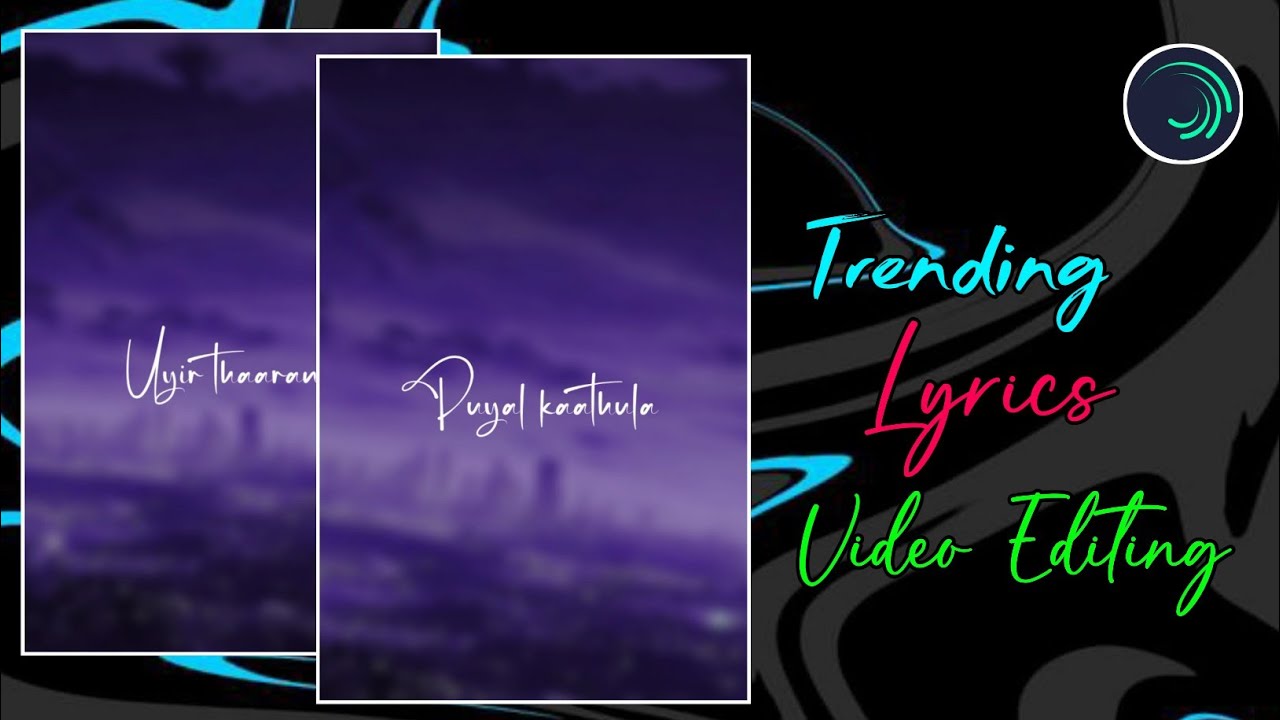
இன்றைய social media உலகத்தில் Instagram Reels, YouTube Shorts மற்றும் Facebook Reels போன்ற short video platforms மிகவும் வேகமாக வளர்ந்து வருகின்றன. இந்த platforms-ல் அதிகமாக trend ஆகும் content வகைகளில் ஒன்று Instagram Trending Lyrics Videos. குறிப்பாக aesthetic background images, smooth animations மற்றும் stylish text effects சேர்த்து செய்யும் lyrics edits பார்ப்பவர்களுக்கு மிகவும் attractive ஆக இருக்கும்.
நீங்களும் உங்கள் mobile-லேயே Alight Motion app பயன்படுத்தி professional lyrics editing videos உருவாக்கலாம். இந்த guide-ல் step-by-step முறையில் Instagram trending lyrics video edit செய்வது எப்படி என்பதை எளிமையாக பார்க்கலாம்
Alight Motion App-ல் Project Create செய்வது
முதலில் உங்கள் mobile-ல் Alight Motion app open செய்யுங்கள்.
- App open செய்ததும் Plus (+) icon click செய்யுங்கள்
- உங்கள் video-க்கு தேவையான ratio, resolution, frame rate மற்றும் background settings select செய்யுங்கள்
- பின்னர் Create Project option click செய்யுங்கள்
இதனால் உங்கள் editing project ready ஆகிவிடும்.
Audio Add செய்து Lyrics Timing Mark செய்வது
Lyrics editing-ல் timing மிகவும் முக்கியம்.
- Plus icon click செய்து Audio option select செய்யுங்கள்
- உங்கள் song-ஐ import செய்யுங்கள்
- Song play செய்து ஒவ்வொரு lyrics வரும் இடத்தில் mark செய்யுங்கள்
இந்த step சரியாக செய்தால் editing smooth ஆக இருக்கும்.
Background Image Add செய்வது
Lyrics video-க்கு aesthetic background மிகவும் முக்கியம்.
- Plus icon click செய்யுங்கள்
- Image option select செய்து background image add செய்யுங்கள்
- மேல இருக்கும் three dots (⋮) option click செய்து
- Fill Composition Area select செய்யுங்கள்
இதனால் image முழு screen-ஐ cover செய்யும்.
Important Tip:
- மிகவும் bright image avoid செய்யுங்கள்
- Slight dark அல்லது light effect இருக்கும் image best
Gaussian Blur Effect Add செய்வது
Background image-க்கு smooth look கொடுக்க blur effect பயன்படுத்தலாம்.
Steps:
- Image layer select செய்யுங்கள்
- Effects → Add Effect
- Blur → Gaussian Blur select செய்யுங்கள்
- Strength value: 200
இதனால் background soft ஆகும்.
Rotation Animation Add செய்வது
Background-க்கு subtle movement கொடுக்க rotation animation பயன்படுத்தலாம்.
Steps:
- Image layer select செய்யுங்கள்
- Move & Transform → Rotate option open செய்யுங்கள்
- மூன்று keyframes add செய்யுங்கள்:
- Start
- Middle
- End
Settings:
- Middle keyframe value: -15 (அல்லது +15)
இதனால் slow rotation effect கிடைக்கும்.
Scale Adjustment செய்வது
Rotation காரணமாக corners-ல் black edges தெரிந்தால் scale adjust செய்ய வேண்டும்.
Steps:
- Scale option select செய்யுங்கள்
- Start, middle, end-ல் keyframes add செய்யுங்கள்
- Scale value-ஐ increase செய்து image zoom ஆக adjust செய்யுங்கள்
இதனால் black edges தெரியாது.
Lyrics Text Add செய்வது
இப்போது video-க்கு lyrics text add செய்யலாம்.
- Plus icon click செய்யுங்கள்
- Text option select செய்யுங்கள்
- Lyrics type செய்யுங்கள் அல்லது paste செய்யுங்கள்
Font Settings
Font:
Blink Gangster Personal Use
Settings:
- Size: 70
- Color: White
- Alignment: Center
Text clean-ஆ center-ல் align செய்ய வேண்டும்.
Lyrics Split செய்து Timing Adjust செய்வது
Lyrics timing correct ஆக இருக்க:
- Text layer select செய்யுங்கள்
- Mark செய்யப்பட்ட இடத்தில் Split option பயன்படுத்துங்கள்
- ஒவ்வொரு line-க்கும் separate layer create செய்யுங்கள்
இதனால் lyrics timing perfect ஆக இருக்கும்.
Background Opacity Adjust செய்வது
Lyrics clear-ஆ தெரிக வேண்டுமெனில்:
- Background image opacity-ஐ 80% வரை reduce செய்யுங்கள்
இதனால் text clearly visible ஆகும்.
Text Scale Animation Add செய்வது
Lyrics-க்கு zoom animation கொடுக்கலாம்.
Steps:
- Text layer select செய்யுங்கள்
- Move & Transform → Scale open செய்யுங்கள்
- 4 keyframes add செய்யுங்கள்
Settings:
- First keyframe: Zoom In
- Last keyframe: Zoom Out
இதனால் smooth zoom animation கிடைக்கும்.
Wipe Transition Effect Add செய்வது
Lyrics stylish ஆக appear ஆக:
Steps:
- Effects → Add Effect
- Matte Mask → Wipe select செய்யுங்கள்
- Transition In (Right) effect apply செய்யுங்கள்
Settings:
- Feather: 20
இதனால் smooth text reveal effect கிடைக்கும்.
Transition Out Effect Add செய்வது
Lyrics disappear ஆகும்போது:
- மீண்டும் Wipe effect add செய்யுங்கள்
- Transition Out (Right) select செய்யுங்கள்
- Feather value: 20
இதனால் text smooth-ஆ hide ஆகும்.
Effects Copy செய்து Apply செய்வது
ஒவ்வொரு lyrics-க்கும் effect manually add செய்ய தேவையில்லை.
- ஒரு text layer select செய்யுங்கள்
- Copy Style option பயன்படுத்துங்கள்
- மற்ற layers-க்கு Paste Style apply செய்யுங்கள்
இதனால் editing fast ஆகும்.
Video Export செய்வது
Editing complete ஆன பிறகு video export செய்யலாம்.
- மேல இருக்கும் Export icon click செய்யுங்கள்
- Settings:
- Resolution: 1080p
- Quality: High
- Frame rate: Default
- Export button click செய்யுங்கள்
இதனால் video ready ஆகிவிடும்.
Conclusion
Alight Motion பயன்படுத்தி Instagram trending lyrics videos உருவாக்குவது மிகவும் easy. சரியான background images, smooth animations மற்றும் clean typography பயன்படுத்தினால் உங்கள் edits professional look பெறும். தொடர்ந்து practice செய்தால் உங்கள் lyrics edits Instagram Reels மற்றும் YouTube Shorts போன்ற platforms-ல் அதிக reach மற்றும் engagement பெறும் வாய்ப்பு உள்ளது.
