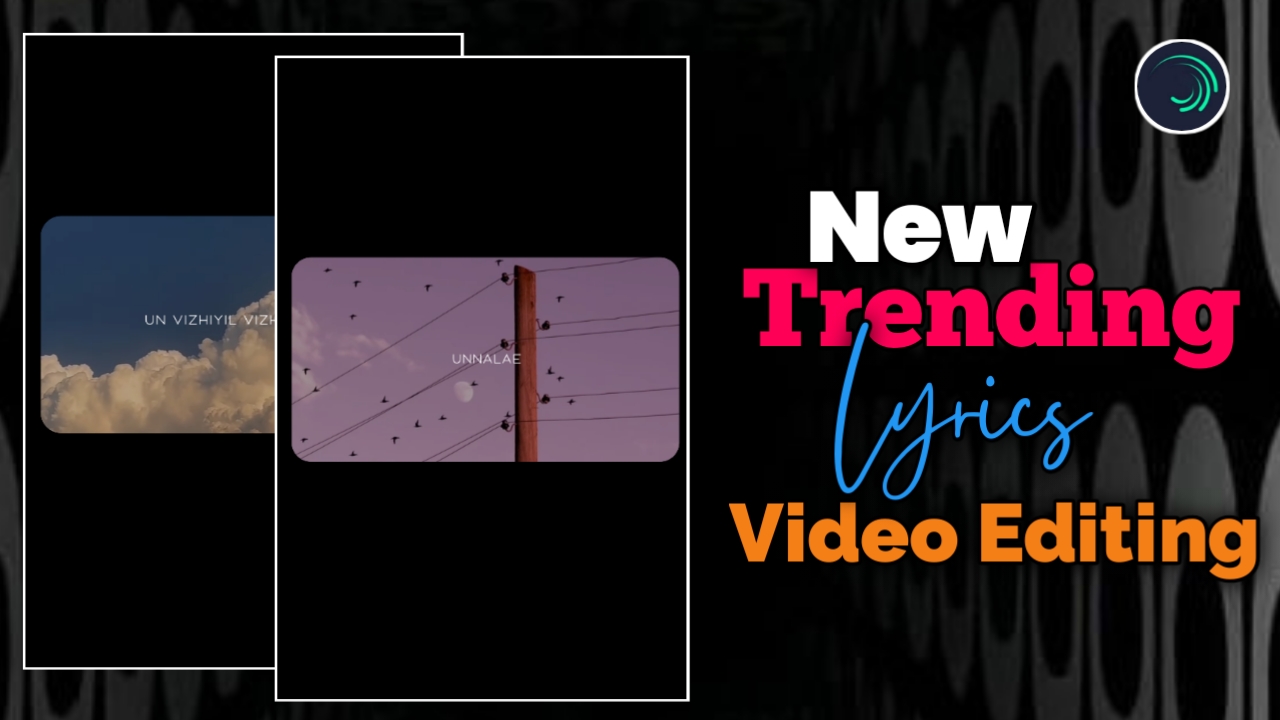
இன்றைய social media உலகத்தில் Instagram Reels, YouTube Shorts, Facebook Reels போன்ற short video platforms மிகவும் பிரபலமாகிவிட்டன. இந்த platforms-ல் அதிகமாக trend ஆகும் content வகைகளில் ஒன்று Instagram Lyrics Editing Videos. குறிப்பாக aesthetic background videos மற்றும் lyrics animations சேர்த்து செய்யும் edits பார்ப்பவர்களுக்கு மிகவும் attractive ஆக இருக்கும்.
நீங்களும் உங்கள் mobile-லேயே Alight Motion app பயன்படுத்தி இந்த மாதிரி professional lyrics videos உருவாக்கலாம். இந்த blog-ல் step-by-step முறையில் Instagram trending lyrics video edit செய்வது எப்படி என்பதை எளிமையாக பார்க்கலாம்.
Video Clips எடுக்க Pinterest App பயன்படுத்துவது
இந்த type editing-க்கு முதலில் background video clips தேவைப்படும். அதற்காக Print app பயன்படுத்தலாம்.
- முதலில் Pinterest app open செய்யுங்கள்.
- App-ல் இருக்கும் Search option-ஐ click செய்யுங்கள்.
- Search bar-ல் உங்களுக்கு தேவையான video type-ஐ search செய்யுங்கள்.
உதாரணமாக:
- Sky aesthetic video
- Nature aesthetic video
- Cloud aesthetic background
இந்த மாதிரி search செய்தால் நிறைய video clips கிடைக்கும்.
ஒரு video பிடித்திருந்தால் அதை open செய்து save செய்து வைத்துக்கொள்ளலாம். மேலும் அந்த video suggestion section-ல் அதே மாதிரி இன்னும் பல similar videos கிடைக்கும்.
Alight Motion App-ல் Project Create செய்வது
இப்போது Alight Motion app open செய்யுங்கள்.
- App open செய்ததும் Plus (+) icon click செய்யுங்கள்.
- உங்கள் project-க்கு தேவையான ratio select செய்யுங்கள்.
- Instagram Reels editing-க்கு பொதுவாக 9:16 ratio பயன்படுத்தப்படுகிறது.
Project create செய்த பிறகு editing timeline open ஆகும்.
Audio Add செய்து Lyrics Timing Mark செய்வது
Lyrics editing-ல் timing மிகவும் முக்கியம்.
- முதலில் project-க்கு audio அல்லது song add செய்யுங்கள்.
- Song play செய்து ஒவ்வொரு lyrics வரும் இடத்தில் mark செய்யுங்கள்.
இந்த timing later text animation add செய்யும்போது மிகவும் உதவும்.
Background Video Add செய்வது
இப்போது நீங்கள் Print app-ல் download செய்த sky aesthetic video clip-ஐ project-க்கு import செய்யுங்கள்.
Video add செய்த பிறகு:
- தேவையான இடத்தில் trim செய்யுங்கள்
- Lyrics timing-க்கு match ஆக adjust செய்யுங்கள்
இதனால் video editing clean-ஆ இருக்கும்.
Shape Layer Add செய்வது
இப்போது background video-க்கு ஒரு stylish frame உருவாக்க shape layer add செய்யலாம்.
Steps:
- Plus icon click செய்யுங்கள்
- Shape option select செய்யுங்கள்
- Square shape add செய்யுங்கள்
இந்த shape-ஐ screen-ல் center-ல் align செய்யுங்கள்.
Shape Radius Adjust செய்வது
Shape-ஐ smooth look கொடுக்க radius adjust செய்யலாம்.
- Shape layer select செய்யுங்கள்
- Edit Shape option open செய்யுங்கள்
- Radius value-ஐ 50 முதல் 60 வரை set செய்யுங்கள்
இதனால் shape corners rounded ஆகும்.
Video Clip-ஐ Shape-க்குள் Show செய்வது
இப்போது video clip shape-க்குள் மட்டும் தெரியும்படி adjust செய்ய வேண்டும்.
- Video layer select செய்யுங்கள்
- தேவையான இடத்திற்கு zoom in / zoom out செய்யுங்கள்
- Shape area-க்குள் video properly align செய்யுங்கள்
இதனால் editing professional look பெறும்.
Layers Group & Mask செய்வது
Video layer மற்றும் shape layer-ஐ combine செய்ய:
- இரண்டு layers-ஐ select செய்யுங்கள்
- Group & Mask option select செய்யுங்கள்
இதனால் video shape frame-க்குள் மட்டும் visible ஆகும்.
Lyrics Text Add செய்வது
இப்போது video-க்கு lyrics text add செய்யலாம்.
- Plus icon click செய்யுங்கள்
- Text option select செய்யுங்கள்
- Lyrics type செய்யுங்கள்
Example:
- Song lyrics
- Channel name
- Caption text
Font Settings
Lyrics text-க்கு font style முக்கியம்.
Font:
Adria Sans Bold
Settings:
- Text size: 24
- Color: White
- Alignment: Center
இந்த settings clean look கொடுக்கும்.
Text Scale Adjust செய்வது
Text-ஐ थोड़ा stylish look கொடுக்க scale adjust செய்யலாம்.
Steps:
- Text layer select செய்யுங்கள்
- Move & Transform option open செய்யுங்கள்
- Scale value slightly increase செய்யுங்கள்
உதாரணமாக:
Current value-இல் இருந்து 50 value increase செய்தால் நல்ல size கிடைக்கும்.
Lyrics Visibility Improve செய்வது
Lyrics text clear-ஆ தெரிக வேண்டுமெனில் background video opacity குறைக்கலாம்.
அதற்கு:
- Video clip layer select செய்யுங்கள்
- Opacity value reduce செய்யுங்கள்
இதனால் lyrics text clearly visible ஆகும்.
Fade In / Fade Out Effect Add செய்வது
Video மற்றும் lyrics-க்கு smooth animation கொடுக்க fade effect பயன்படுத்தலாம்.
Steps:
- Layer select செய்யுங்கள்
- Effects → Add Effect
- Opacity & Visibility option select செய்யுங்கள்
- Fade In / Fade Out effect add செய்யுங்கள்
Value:
20 – 30 range
இந்த range animation-ஐ smooth-ஆ காட்டும்.
Fade Effect Timing Adjust செய்வது
Fade effect timing சரியாக இருக்க வேண்டும்.
உதாரணமாக:
- Fade In: 10
- Fade Out: 10
இந்த மாதிரி split செய்தால் animation smooth-ஆ இருக்கும்.
Fade value அதிகமாக இருந்தால் lyrics late-ஆ appear ஆகும். அதனால் values குறைவாக வைத்தால் editing clean-ஆ இருக்கும்.
Final Preview Check செய்வது
Editing complete ஆன பிறகு video preview check செய்யுங்கள்.
Check செய்ய வேண்டியவை:
- Lyrics timing சரியா?
- Text clear-ஆ இருக்கிறதா?
- Animation smooth-ஆ இருக்கிறதா?
எல்லாம் சரியாக இருந்தால் video export செய்து Instagram Reels அல்லது YouTube Shorts-ல் upload செய்யலாம்.
Conclusion
Alight Motion பயன்படுத்தி Instagram trending lyrics videos உருவாக்குவது மிகவும் easy. சரியான background clips, clean typography மற்றும் smooth fade animations பயன்படுத்தினால் உங்கள் edits professional look பெறும். தொடர்ந்து practice செய்தால் உங்கள் lyrics edits social media platforms-ல் அதிக reach மற்றும் engagement பெறும் வாய்ப்பு உள்ளது.
