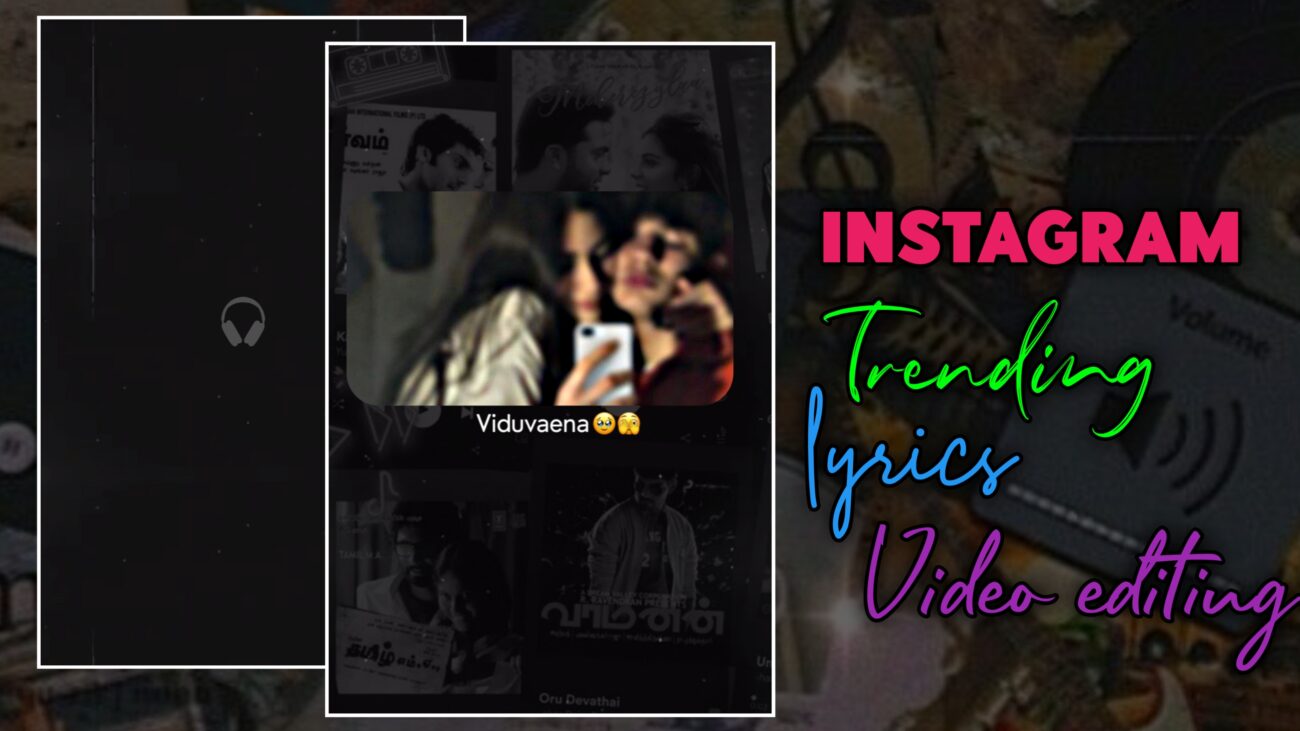
இன்றைய social media உலகத்தில் Instagram Reels, YouTube Shorts மற்றும் Facebook Reels போன்ற short video platforms மிகவும் பிரபலமாகிவிட்டன. இந்த platforms-ல் அதிகமாக trend ஆகும் content வகைகளில் ஒன்று Instagram Trending Lyrics Videos. aesthetic background visuals, smooth transitions மற்றும் stylish text animations சேர்த்து செய்யப்படும் இந்த lyrics edits பார்ப்பவர்களுக்கு மிகவும் engaging ஆக இருக்கும்.
நீங்களும் உங்கள் mobile-லேயே Alight Motion app பயன்படுத்தி professional lyrics editing videos உருவாக்கலாம். இந்த guide-ல் step-by-step முறையில் Instagram trending lyrics video edit செய்வது எப்படி என்பதை எளிமையாக பார்க்கலாம்.
Alight Motion App-ல் Project Create செய்வது
முதலில் உங்கள் mobile-ல் Alight Motion app open செய்யுங்கள்.
- App open செய்ததும் Plus (+) icon click செய்யுங்கள்
- உங்கள் video-க்கு தேவையான ratio, resolution, frame rate மற்றும் background settings select செய்யுங்கள்
- பின்னர் Create Project click செய்யுங்கள்
இதனால் editing timeline open ஆகும்.
Audio Add செய்து Lyrics Timing Mark செய்வது
Lyrics editing-ல் timing மிகவும் முக்கியம்.
- Plus icon click செய்து Audio option select செய்யுங்கள்
- உங்கள் song-ஐ import செய்யுங்கள்
- Song play செய்து ஒவ்வொரு lyrics வரும் இடத்தில் mark செய்யுங்கள்
இந்த step later editing-க்கு மிகவும் முக்கியமானது.
Template Add செய்து Adjust செய்வது
Editing-க்கு தேவையான template-ஐ add செய்யலாம்.
- Template file import செய்யுங்கள்
- Lyrics timing-க்கு match ஆக expand / cut செய்யுங்கள்
- Cut அல்லது expand செய்யும்போது Timer icon பயன்படுத்துங்கள்
இதனால் template effect cut ஆகாமல் smooth-ஆ இருக்கும்.
Background Image Add செய்வது
Lyrics video-க்கு background visuals முக்கியம்.
- Plus icon click செய்யுங்கள்
- Image option select செய்து image add செய்யுங்கள்
- Fill Composition Area option பயன்படுத்தி full screen-க்கு fit செய்யுங்கள்
Tip:
- Slight dark அல்லது aesthetic image பயன்படுத்தினால் text clearly தெரியும்
Background Movement Animation Add செய்வது
Image static ஆக இல்லாமல் movement கொடுக்கலாம்.
Steps:
- Image layer select செய்யுங்கள்
- Move & Transform option open செய்யுங்கள்
- Start மற்றும் End-ல் keyframes add செய்யுங்கள்
- Start: Image கீழ் position
- End: Image மேல move ஆகும்
இதனால் slow upward motion கிடைக்கும்.
Zoom Animation Add செய்வது
Image-க்கு zoom effect கொடுக்கலாம்.
- Scale option select செய்யுங்கள்
- இரண்டு keyframes add செய்யுங்கள்
- First: Zoom level increase
- Next: Normal அல்லது slight zoom out
இதனால் smooth zoom effect கிடைக்கும்.
Saturation & Color Effect Add செய்வது
Image-க்கு cinematic look கொடுக்க:
- Effects → Add Effect
- Color & Light → Saturation & Vibrance select செய்யுங்கள்
- Saturation value-ஐ fully decrease செய்யுங்கள்
இதனால் black & white style கிடைக்கும்.
Blending & Opacity Adjust செய்வது
Background intensity control செய்ய:
- Opacity value: 40 – 60 range
இதனால் lyrics text clearly visible ஆகும்.
Overlay (Old Film Effect) Add செய்வது
Video-க்கு vintage feel கொடுக்க overlay add செய்யலாம்.
- Old film template add செய்யுங்கள்
- அதை background மற்றும் image layer மேல் place செய்யுங்கள்
- Opacity value: 50 – 60
இதனால் aesthetic film effect கிடைக்கும்.
Shape Layer Add செய்வது
Image-ஐ stylish frame-ல் காட்ட shape layer பயன்படுத்தலாம்.
- Plus icon → Shape select செய்யுங்கள்
- Square shape add செய்யுங்கள்
- அதை rectangle shape-ஆ resize செய்யுங்கள்
Radius:
- Value: 60
இதனால் rounded corners கிடைக்கும்.
Image Masking (Group & Mask) செய்வது
Image-ஐ shape-க்குள் காட்ட:
- Shape + Image layers select செய்யுங்கள்
- Group & Mask option click செய்யுங்கள்
இதனால் image shape-க்குள் மட்டும் visible ஆகும்.
Lyrics Text Add செய்வது
இப்போது video-க்கு lyrics add செய்யலாம்.
- Plus icon → Text
- Lyrics type செய்யுங்கள்
Font:
Free OC Bajaro Medium
Settings:
- Size: 20
- Color: White
- Alignment: Center
Emoji Add செய்வது
Lyrics-க்கு extra style கொடுக்க emoji add செய்யலாம்.
- Text option மூலம் emoji add செய்யுங்கள்
- Emoji font change செய்து iPhone style convert செய்யலாம்
Emoji Size:
- 14
Text & Emoji Group செய்வது
Text மற்றும் emoji layers-ஐ group செய்யுங்கள்:
- இது animation apply செய்ய easy ஆகும்
Fade Effect Add செய்வது
Lyrics-க்கு simple animation கொடுக்க:
- Effects → Add Effect
- Opacity & Visibility → Fade In / Fade Out select செய்யுங்கள்
இதனால் smooth appearance கிடைக்கும்.
Image Transition Effect Add செய்வது
Image change ஆகும்போது smooth transition கொடுக்கலாம்.
Steps:
- Image layer select செய்யுங்கள்
- Effects → Matte Mask → Wipe select செய்யுங்கள்
- Transition Out (Down) effect apply செய்யுங்கள்
Settings:
- Feather: 20 – 30
இதனால் image smooth-ஆ change ஆகும்.
Multiple Images Arrange செய்வது
ஒவ்வொரு lyrics-க்கும் image slightly overlap ஆக arrange செய்ய வேண்டும்.
- First image: Slight extend
- Next image: Slight முன்னாடி start
இதனால் seamless transition கிடைக்கும்.
Effects Copy செய்து Apply செய்வது
Editing fast ஆக செய்ய:
- One layer-ல் effect apply செய்யுங்கள்
- அதை Copy Style
- மற்ற layers-க்கு Paste Style
Final Preview Check செய்வது
Editing complete ஆன பிறகு video preview check செய்யுங்கள்.
Check செய்ய வேண்டியவை:
- Lyrics timing சரியா?
- Transition smooth-ஆ இருக்கிறதா?
- Text clearly தெரிகிறதா?
எல்லாம் சரியாக இருந்தால் export செய்யலாம்.
Video Export செய்வது
- மேல இருக்கும் Export icon click செய்யுங்கள்
- Settings:
- Resolution: 1080p
- Quality: High
- Export click செய்யுங்கள்
Conclusion
Alight Motion பயன்படுத்தி Instagram trending lyrics videos உருவாக்குவது மிகவும் easy. சரியான background visuals, smooth animations மற்றும் clean typography பயன்படுத்தினால் உங்கள் edits professional look பெறும். தொடர்ந்து practice செய்தால் உங்கள் lyrics edits Instagram Reels மற்றும் YouTube Shorts போன்ற platforms-ல் அதிக reach மற்றும் engagement பெறும் வாய்ப்பு உள்ளது.
